Scanned out there. Buzzing in your pocket.

No chat workspace, no ops stack — just your phone. The instant someone clicks a link or scans one of your QR codes, Pushover delivers a notification with the link's title, short URL, source, destination and time. Field signage, shop-window codes, printed flyers: you find out while it's still happening, not in tomorrow's analytics.

Pushover channel set-up in the xengo console
Two fields, done

An app token, a user key, and your pocket is wired in.

Pushover's messages API is refreshingly plain, and xengo speaks it natively — no relay service in the middle, no webhook gymnastics. Create one application on their side, paste two values on ours.

  1. 1

    Create an application in Pushover

    On pushover.net, choose Create an Application/API Token and name it (xengo works). Pushover gives you an app token; your user key is already sitting at the top of your dashboard.

  2. 2

    Add the channel in xengo

    Console → Notifications → Add channel → Pushover. Paste the token into App token, your key into User key, save — then hit Send test and feel your phone buzz.

  3. 3

    Decide what's worth a buzz

    Route the whole account to your pocket, or attach the channel to specific links and QR codes — the shop-window code buzzes you, the newsletter links stay quiet.

One page, and your phone is a channel

One page, and your phone is a channel

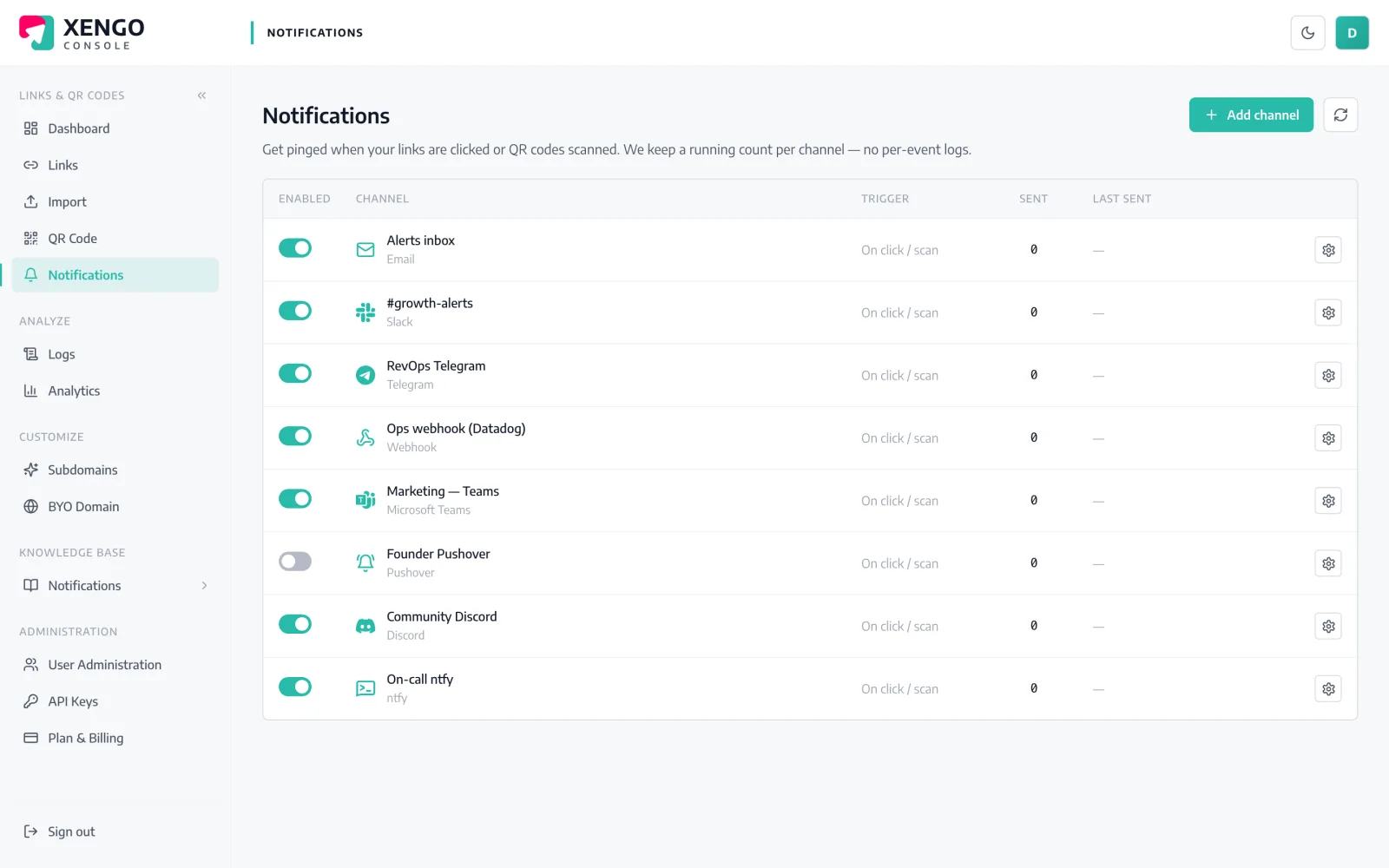
Pushover lives on the console's Notifications page next to 23 other channels — add it once, watch its send count and last delivery, and pause it for the weekend without deleting anything.

  • Name channels — 'My phone' and 'Warehouse pager' stay distinct
  • Send counts and last-sent timestamps at a glance
  • Pause and resume without re-entering tokens
Print the code. Carry the alerts.

Print the code. Carry the alerts.

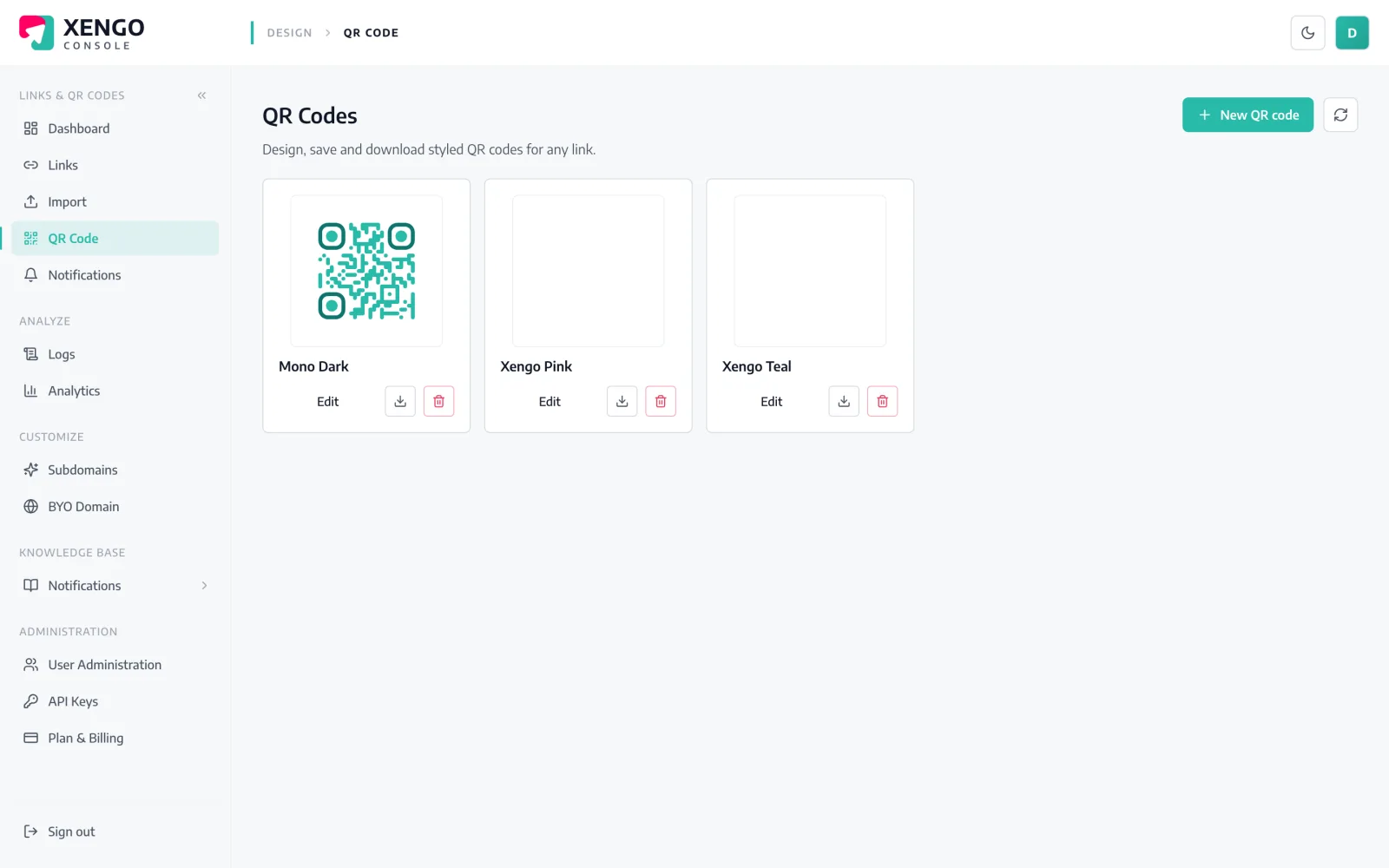
QR codes live in the physical world where you can't watch them — which is exactly why a pocket alert fits. Style the code, print it, and every scan finds you wherever you are.

  • Dynamic QR codes — change the destination without reprinting
  • Each scan reports its source, so QR and direct clicks read apart
  • Same code can also feed analytics, webhooks and email

The details that make it dependable

Seconds from scan to buzz

The scan hits our redirect plane, the event is processed, and Pushover's API is called — the notification typically lands within a couple of seconds.

Context, not just a chirp

Title, short URL, source (click vs QR scan), destination, UTC timestamp — plus device, referrer, IP and your tags when available.

Retries when the API blips

A failed delivery is retried on a backoff ladder — up to six attempts over roughly 43 minutes — and every attempt is recorded in the delivery log.

Group keys work too

Pushover treats delivery-group keys like user keys, and xengo passes yours through verbatim — paste a group key and the whole group gets the buzz.

Tested before trusted

The Send test button fires a real delivery through your token and key, so a typo surfaces at set-up rather than during your launch.

Stacks with everything else

The same scan can buzz your phone, post to Slack and fire a signed webhook — channels stack, they don't compete.

Frequently asked questions

Do I need to create my own Pushover application?

Yes — Pushover's API identifies senders by application, so you create one (free, takes a minute) and paste its token into xengo alongside your user key. The upside: the sends appear under your own application in Pushover, with your name and icon on them.

Can scans notify my whole team, not just me?

If your team uses Pushover, create a delivery group there and paste the group key into the User key field — Pushover treats group keys identically to user keys, so everyone in the group gets each scan. Alternatively, add one xengo channel per person.

What does the notification actually say?

The title reads 'xengo: <short-link> clicked' and the message carries the link's title, the short URL, whether it was a direct click or a QR scan, the destination, the UTC time and — where available — device, referrer, IP and your custom tags.

Can xengo set the Pushover priority or sound?

No — we send the title and message only, so notifications arrive at Pushover's default priority. Sounds and quiet hours are yours to control in the Pushover app, where you can set a per-application sound for xengo's sends.

What happens if a delivery fails?

Failed attempts retry on a backoff ladder — 30 seconds, then 2, 10, 15 and 15 minutes — for up to six attempts in total, and each one is recorded in the delivery log with its response. Email is the only channel we deliberately never retry; Pushover isn't it.

More push to your pocket

One platform. Everything a link should do.

Smart URLs, dynamic QR codes and a full API — branded on your own domain, safety-screened, and tracked. Build, re-point and measure it all in one place.

Start free trial
1,284 clicks
go.acme.com/spring
1 London 412
2 Manchester 168
3 Bristol 94

Smart URLs

Branded short links on a domain you control — editable, screened, and tracked.

Popular Smart URLs features

  • Your own custom domain, auto-HTTPS
  • Re-point live links without reprinting
  • Every destination safety-screened
  • Honest, bot-filtered analytics

Dynamic QR

Branded QR codes you can re-point any time — never reprint the poster again.

Popular Dynamic QR features

  • Editable destination behind every code
  • Your brand colours + logo
  • Real-time scan alerts
  • Per-code scan analytics
$ curl -X POST api.xengo.io/v1/links
{
  "domain": "go.acme.com",
  "url": "https://acme.com/…"
}
→ 201 go.acme.com/aB3xK

API

Create and manage links + QR at scale, straight from your own tools.

Popular API features

  • REST API with scoped keys
  • Bulk-create thousands of links
  • Programmatic QR generation
  • Webhooks + click / scan alerts

Put your next scan in your pocket

14-day free trial, card required, cancel anytime. Two pasted values and the first buzz is minutes away.